Creating vertical text in Photoshop is surprisingly easy with the Vertical Type Tool. However, if you already have horizontal text that you’d like to change to vertical text, you can easily do so as well!
Let’s talk about these processes more in-depth with a few demonstrations.
How To Make Vertical Text In Photoshop
Step 1: Select The Vertical Type Tool (T) And Start Typing
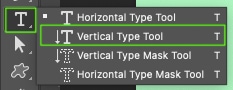
With your document ready to be written on, click and hold the Type Tool icon in the toolbar to reveal other Type options.
Choose the Vertical Type Tool (T). The Type Tool’s cursor will change to suit its new vertical direction instead of the typically horizontal direction of writing.
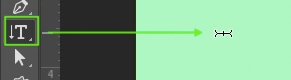
You can write using Point Text by clicking once on your canvas. This inserts placeholder text vertically.
Writing vertically may create hard-to-read text. One word is easy to read; however, typing multiple words using only the Spacebar between them hinders readability.
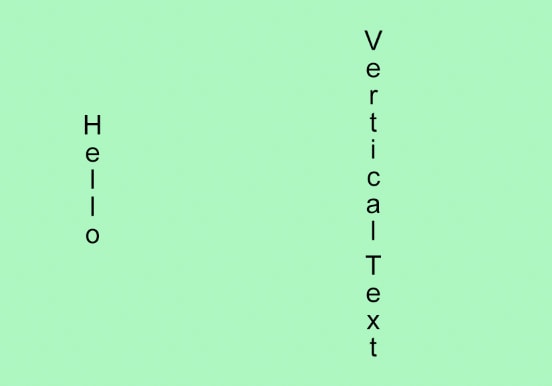
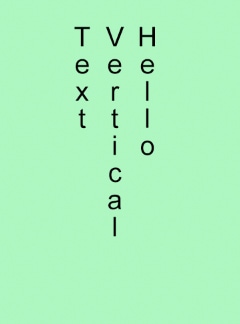
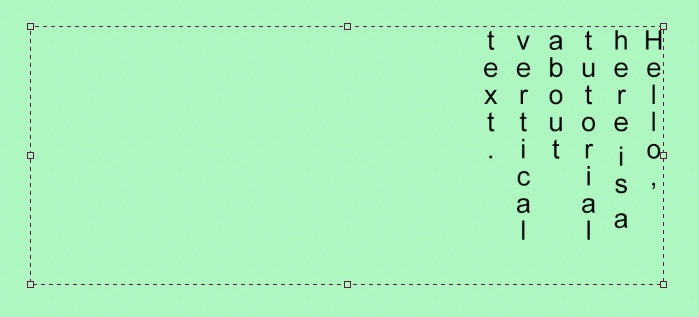
If you type with the Vertical Type Tool (T) and press Enter between words — how you would make a line break for horizontal text — the new line of text moves left of the first line. Since, in English, we read left to right, this also hinders readability.
Step 2: Use Paragraph Text
Using Paragraph Text creates a similar result. Click and drag the Vertical Type Tool (T) across your canvas to create Paragraph Text. The text box will first fill with placeholder text.
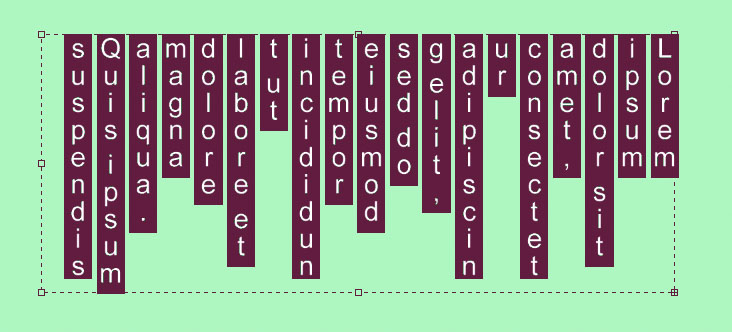
Type your text in the text box, and you’ll notice, again, that the typing starts on the right of the box, and each new word moves left. Punctuation marks are placed in the space below the letter, rather than tight to the letter like with horizontal text.
How To Convert Horizontal Text To Vertical In Photoshop
Select or highlight the text you wish to convert and then, with either the Vertical or Horizontal Type Tool selected, go to the Options Bar at the top of the workspace. Next to the font selection dropdown, click Toggle text orientation.

Your text will immediately convert to either horizontal or vertical, depending on its original format. You can toggle this button infinite times to revert your text back and forth.
Happy Typing!