When organizing your design elements on a page, you may need to know how to flip an image in Canva. This is helpful when needing to flip or rotate different elements to fit your layout better.
Flipping and rotating is easy in Canva. However, there are a few tricks to get the most out of this feature. Also, you can’t flip text in the same manner as images and graphics. You need to follow a simple workaround, which I detail below.
How To Flip An Image In Canva
Step 1: Select The Image And Click On Flip Above The Canvas
Just click on the image that you want to flip, then, at the top of the page, select Flip.
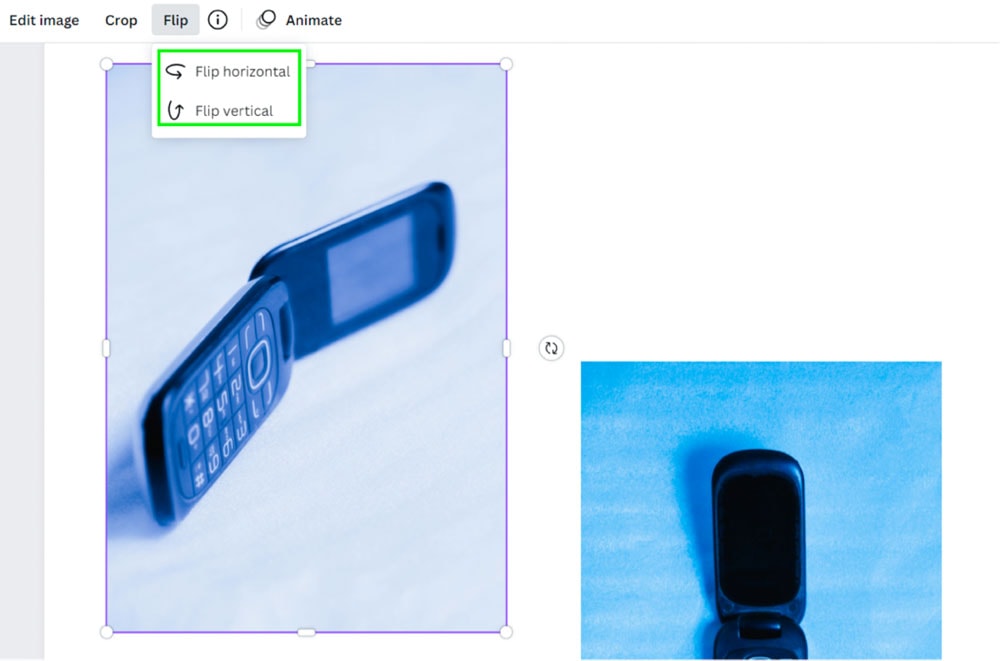
Step 2: Select Flip Horizontal Or Flip Vertical
Horizontal will flip your image from left to right or right to left. Vertical will flip your image from up to down or down to up.
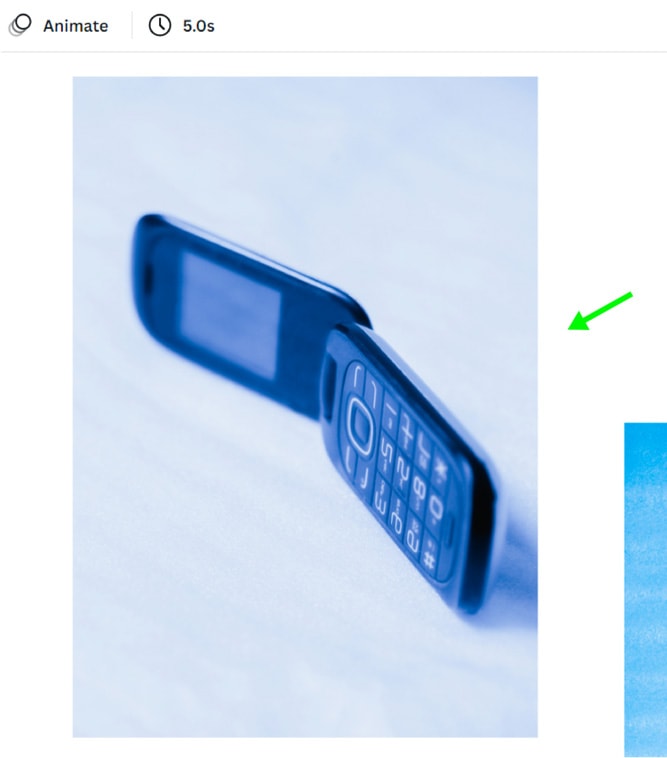
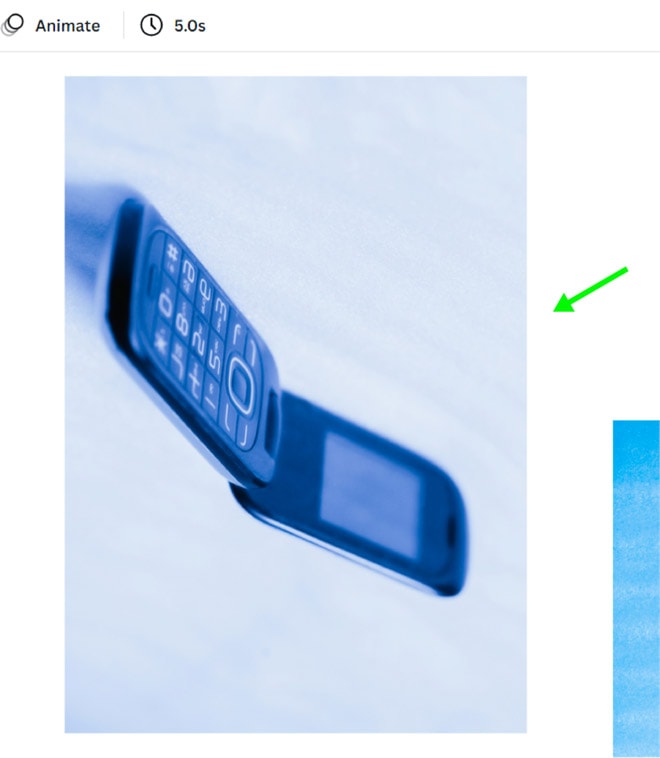
Step 3: Hold In Shift And Select Elements Before Flipping
Flipping works with photos, graphics, and cut-out images. To select multiple images to flip, click on one image and then hold down the Shift Key and click on any other images you wish to flip.
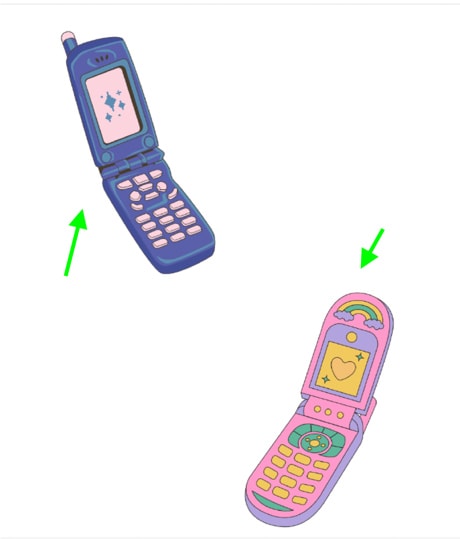
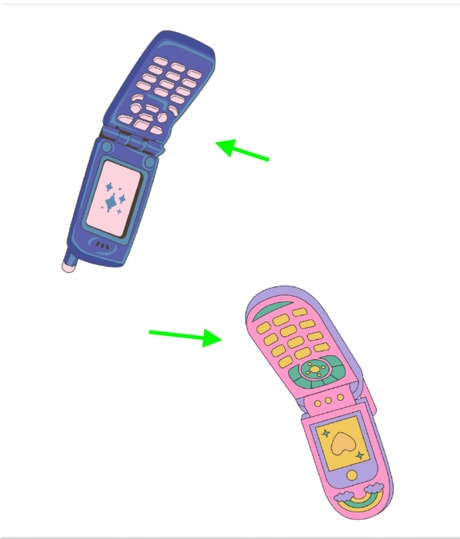
How To Rotate Images & Text in Canva
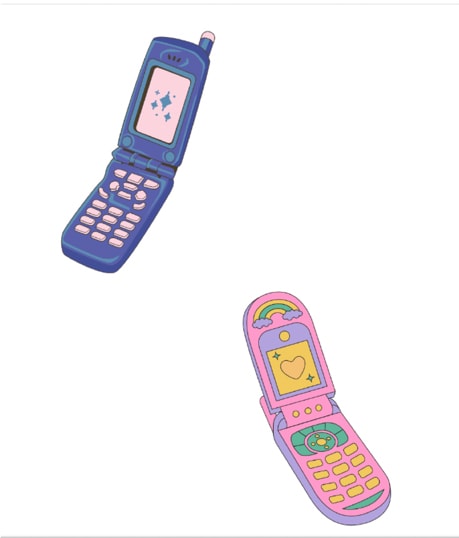
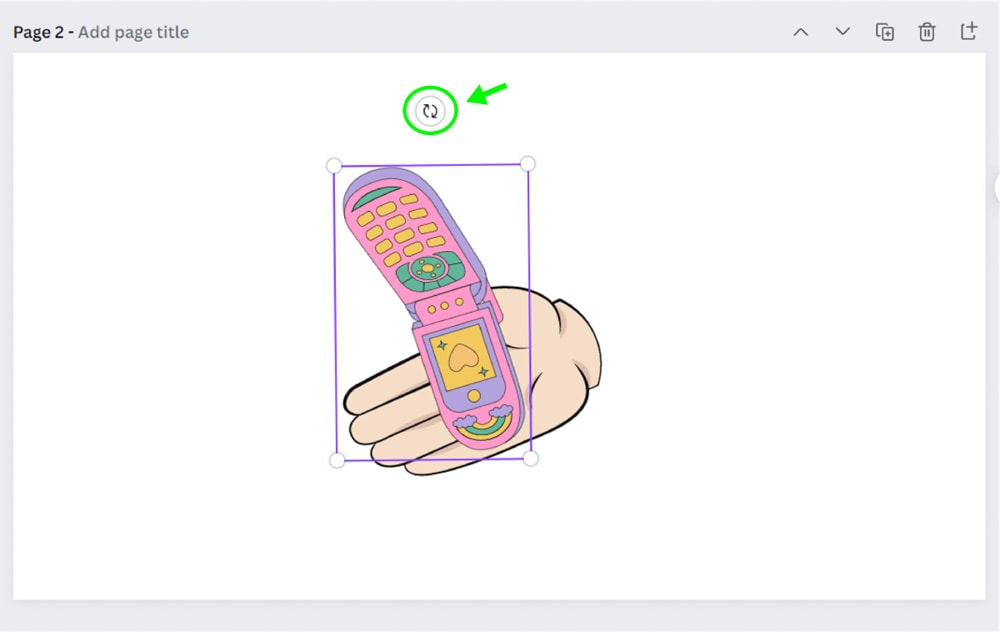
First, click on the object you would like to rotate. Then, click and hold the Rotate Button. Drag your mouse to rotate the object the way you would like it.
How To Flip Text In Canva
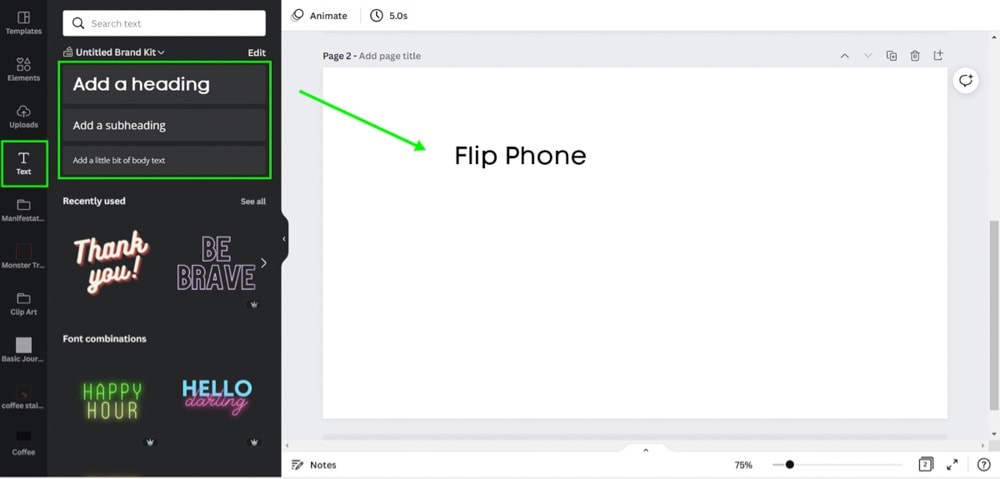
Step 1: Add Text To The Canvas Using The Text Tab
Click on the Text tab, then select the size of the text you would like. Alternatively, press T to open up a new Text Box. Then, type out your text.
Step 2: Download The Text Project As A PNG
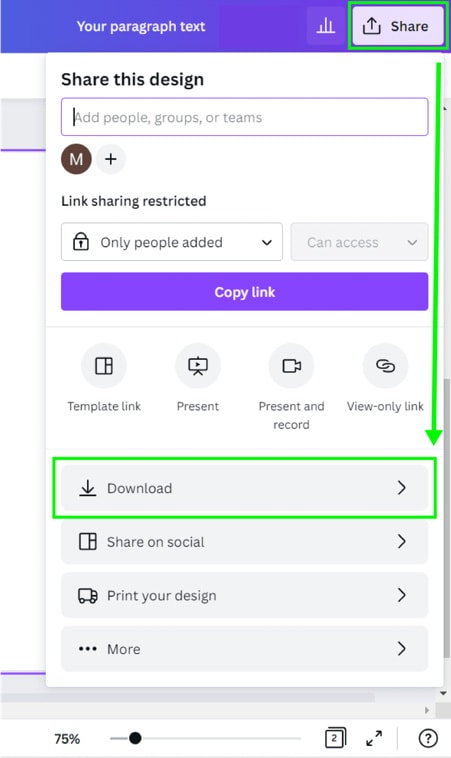
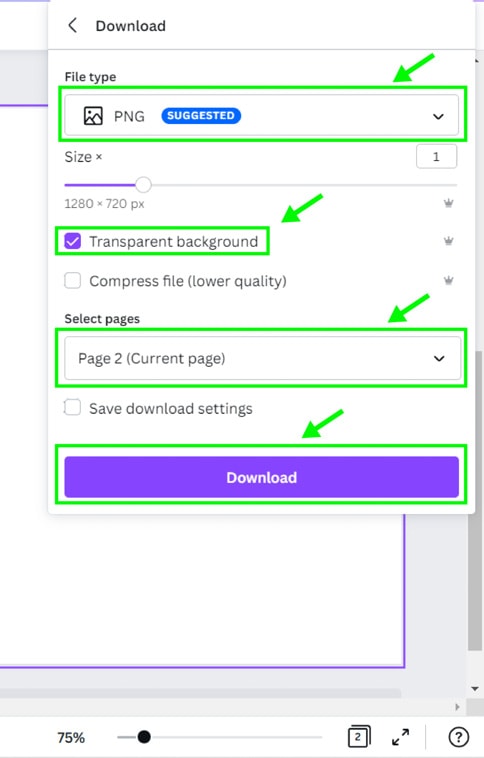
Then, click on the Share Button at the top of the page and then the Download Button. Make sure PNG is selected and that Transparent Background is checked. Double-check that the correct page is selected under Select Pages and click the Download Button.
Step 3: Upload The Text Project Back Into Canva
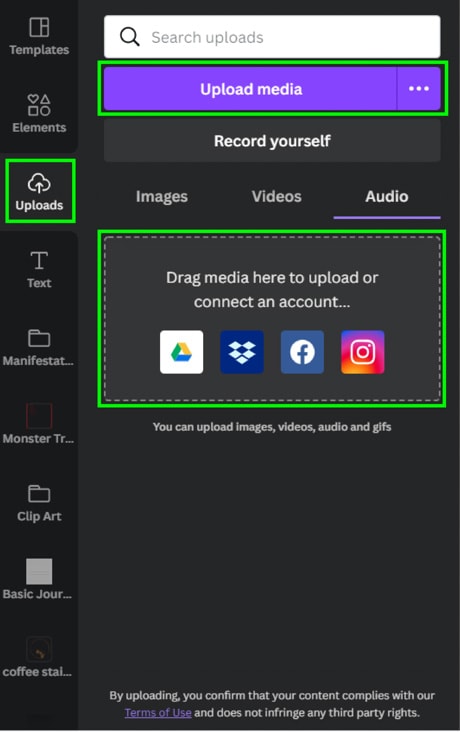
The PNG you just downloaded will now be on your computer’s hard drive. Click on the Upload Tab in Canva and select Upload Media. Drag the PNG into the uploads tab.
Your PNG will now be under the Uploads Tab. Click on the image or click and drag the image into your project.
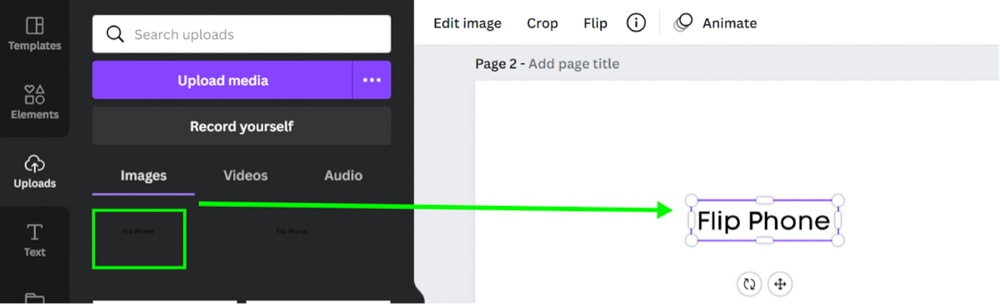
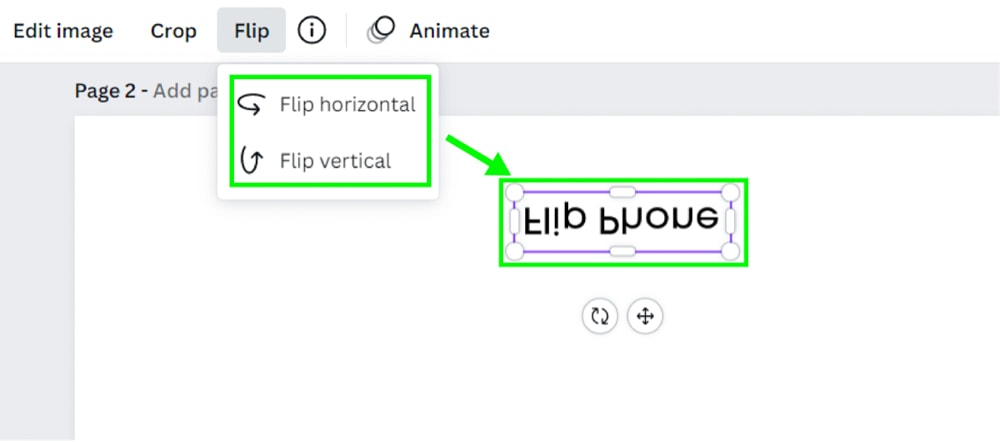
Step 4: Click On The Flip Feature Above The Canvas And Select The Orientation
Now that your text is considered an image layer by Canva, you can flip it however you’d like without any problems.
So, with these different techniques in mind, it’s easy to flip anything in Canva from images, graphics, or text.