Canvas size and image size might sound and look similar in Photoshop, but these are two very different things. Although both impact the final size of the file you are working with, the canvas size and image size options change different aspects of your project. Located in the same menu, it can be easy to confuse the two.
Luckily, this guide will clear the air to help you better understand the differences between the two.
What Is Canvas Size In Photoshop?
In Adobe’s world, the term canvas represents your workspace. In Photoshop specifically, this term doesn’t apply to the image you opened itself, simply to the workable space in the program.
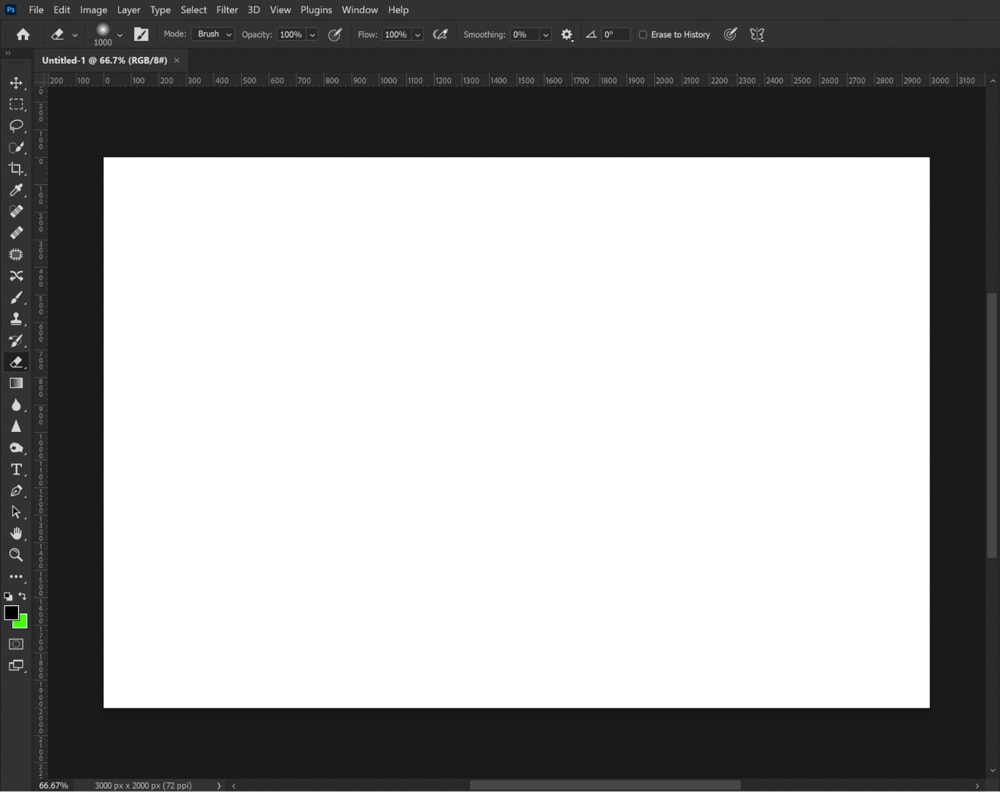
By adjusting the canvas size, you can increase or decrease the size of the area you can work on.
Is Artboard Size And Canvas Size The Same?
In a way, the artboard size and canvas size are very similar (more similar than canvas size and image size). However, these two are not exactly the same things.
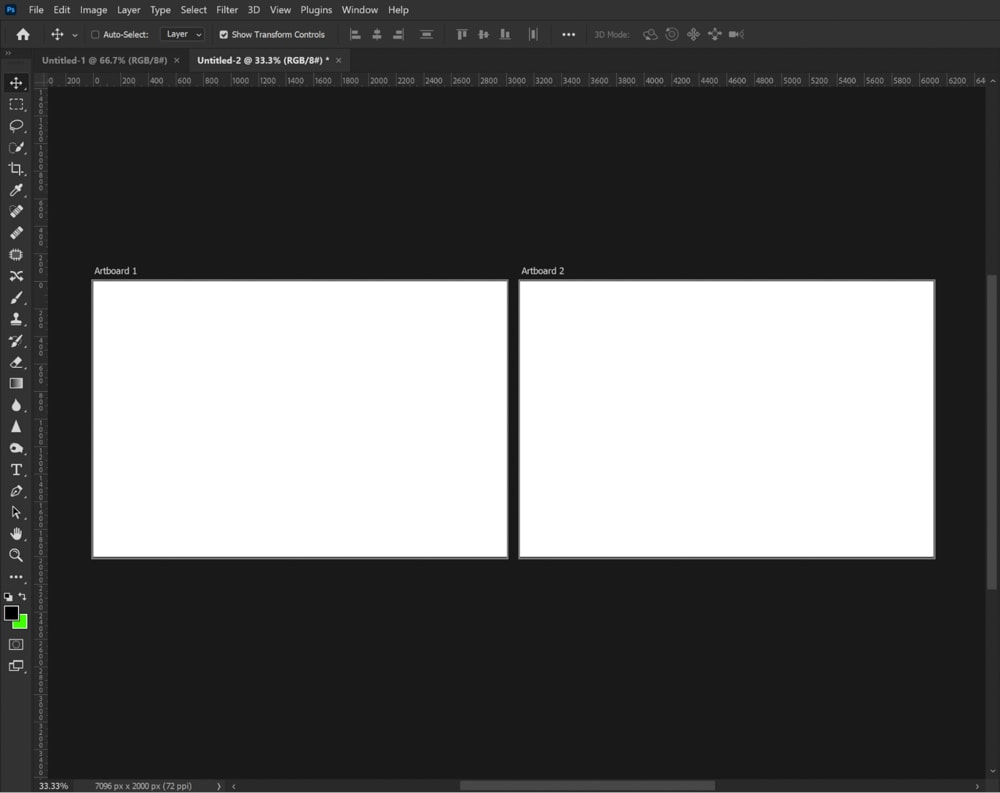
An artboard in Photoshop is a blank canvas on which you can add images, objects, text, and other elements. The artboard can hold multiple layers and layer groups that you add to the project. You can have more than one artboard in a single open document in Photoshop.
The canvas refers to the one workspace you have open.
Artboard size and canvas size are the same in the sense that they are both only adjusting your workable area and not any elements inside of them. All image(s) and content you have in the workspace area will hold their original dimensions when you adjust the artboard or canvas size. But artboards are multiple pages, and canvases are just a single one.
What Is Image Size In Photoshop?
Image size impacts the actual dimensions and resolution of the image you have opened in Photoshop. This is most often used when wanting to print a photo; you can resize the image to the exact size of the print you wish to make.
Changing the image size will impact the quality of your image because it either expands or contracts the pixels in the photo. If you increase the image size too much, your photo may begin to look pixelated. If you decrease the image size significantly, then the image may appear sharper because the pixels are getting more compressed and squished.
What’s The Difference Between Canvas Size and Image Size?
The biggest difference between these two terms is what size is being impacted. Canvas size increases or decreases the workable area, while image size increases or decreases the actual size of the image opened in the program.
One stretches or shrinks the workspace (leaving the image on the workspace untouched), and the other stretches and shrinks the pixels in the image opened.
A good way to see a visual example of this is to compare what happens when you increase the canvas size and when you increase the image size.
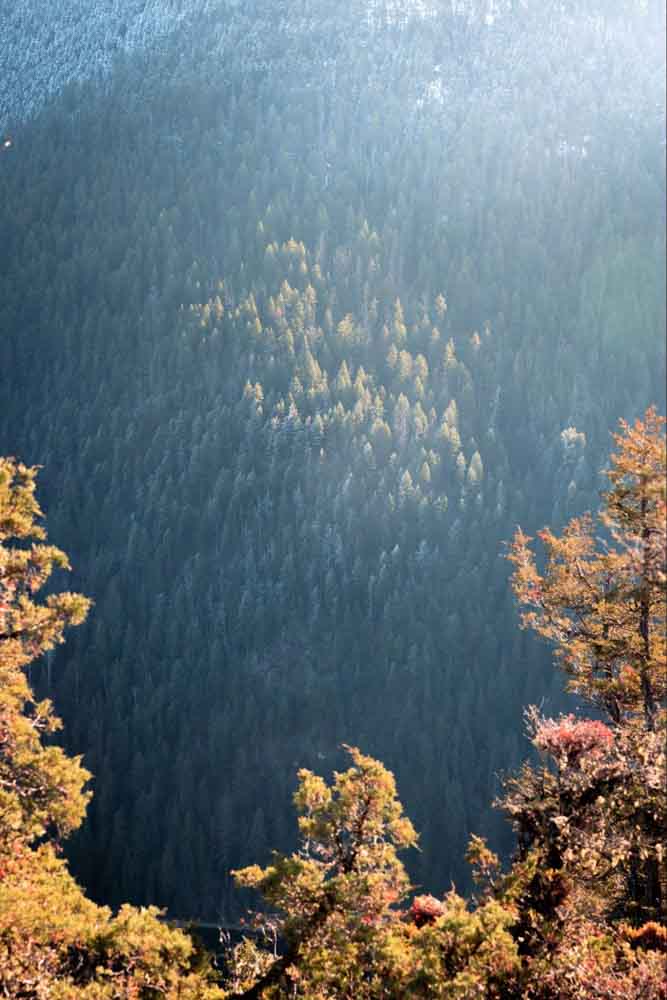
Let’s open this image, sized at 4,480 pixels by 6,720 pixels.
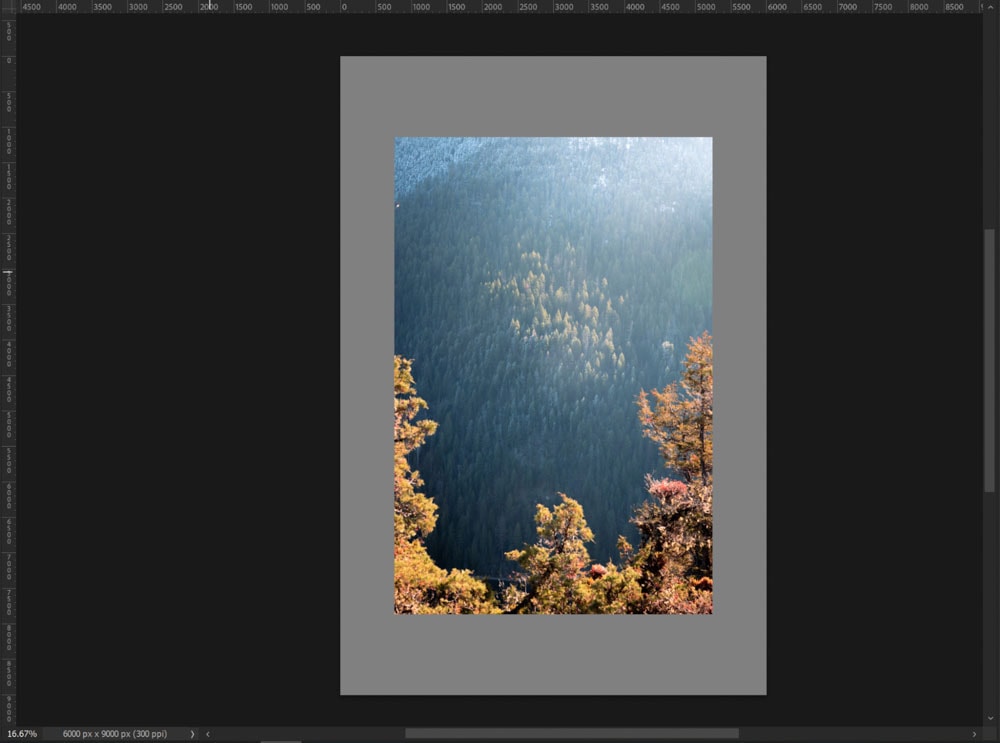
I will increase the canvas size to 6,000 pixels by 9,000 pixels, which is larger than the original size of the image.
As a result, I see blank edges around the image now. This shows that my workable space has increased, but the photo itself has not been modified in size whatsoever.
To repeat this with image size, I’m going to increase the image size to 6,000 pixels by 9,000 pixels (to match the canvas size adjustment I made above).
This results in the image being stretched to fit the above dimensions.
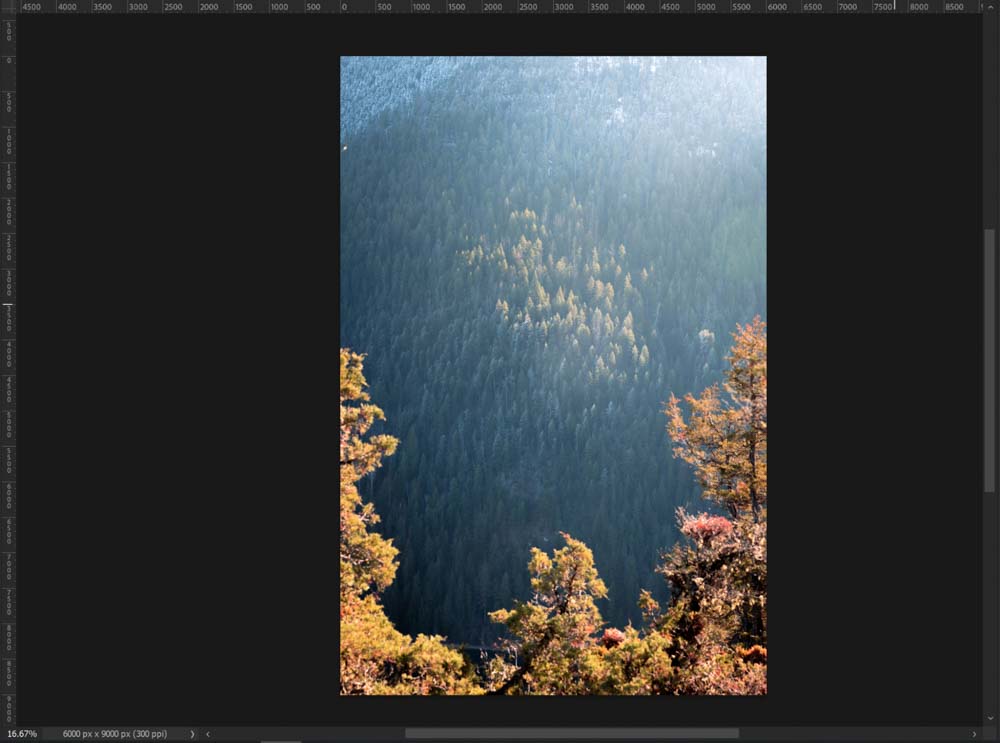
As you can see, the size adjustment impacts something different between canvas size and image size. From the perspective of a photographer, if you want to add to your image’s borders or crop in, you adjust the canvas size. If you need the photo to be bigger or smaller to fit the resolution of a print or online upload, you change the image size.
How To Change Your Canvas Size In Photoshop
If you have an image already open, click Image at the top toolbar, which will bring down a menu. In this menu, select Canvas Size.
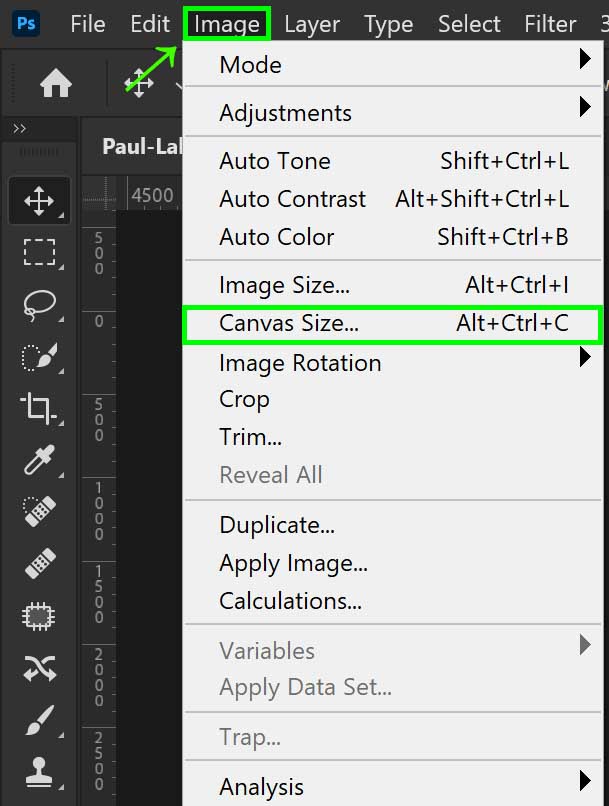
The Canvas Size menu will then appear, and you can set the size you desire here.
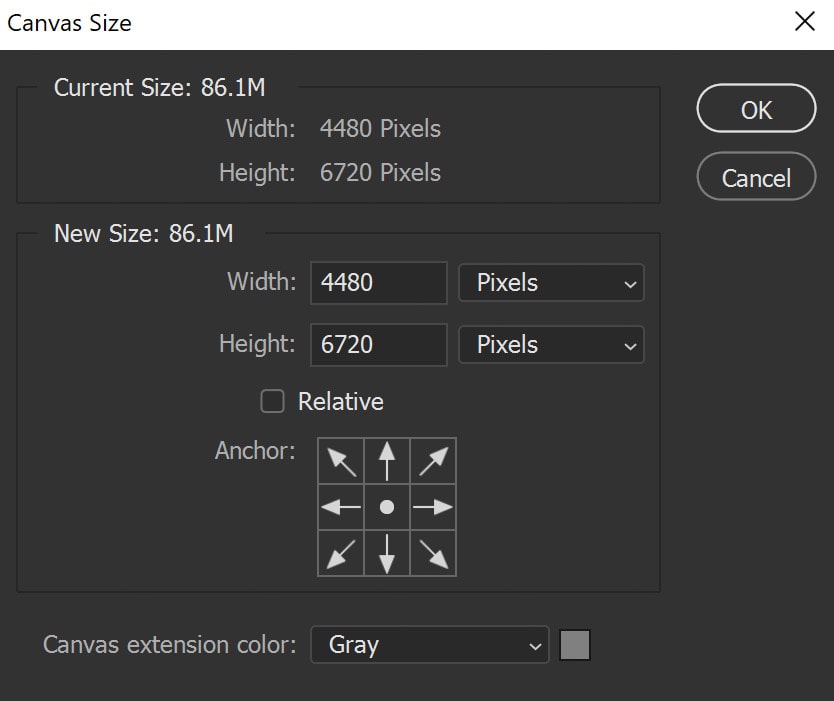
For more details to help understand this dialogue box, see my guide on changing canvas size in Photoshop.
How To Change Your Image Size In Photoshop
If you have an image already open, click Image at the top toolbar, which will bring down a menu. In this menu, select Image Size.
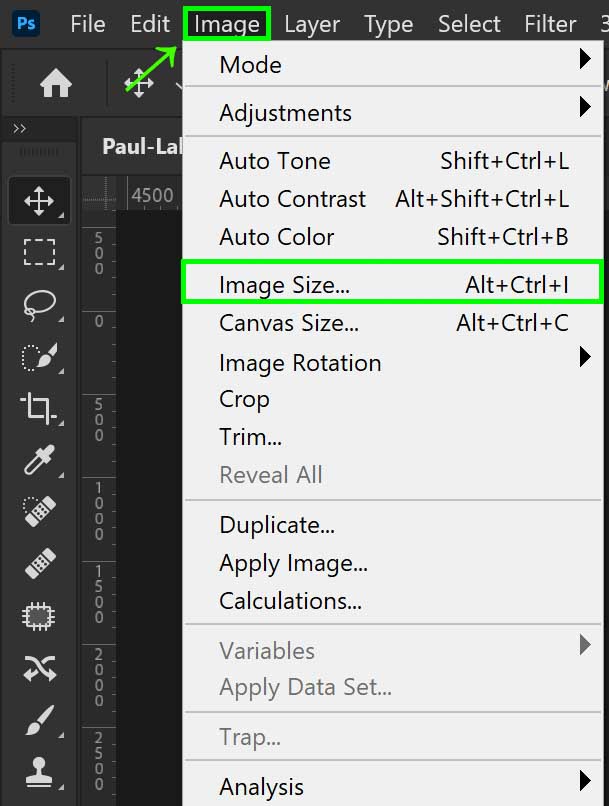
The Image Size menu will then appear, and you can set the size you desire here.
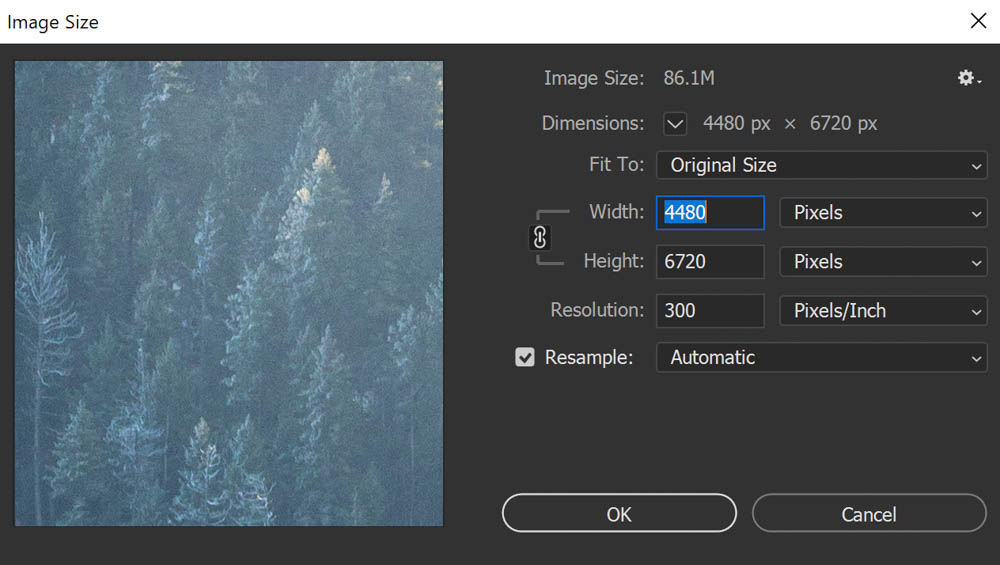
When scaling your image to a larger size, it’s important to choose the right resample settings to ensure you don’t have a pixelated image. I share the best ways to resize images without losing quality in this tutorial.